Crawling a website is one of the most important steps in a technical SEO audit. A website crawler allows you to scan every page on a site, identify technical issues, and analyze how search engines see your website.
With CrawlRhino SEO Crawler, you can quickly crawl websites to detect problems such as broken links, missing metadata, duplicate titles, slow pages, and indexing issues.
In this article, we’ll show you how to crawl a website using CrawlRhino SEO crawler and explain how to analyze the crawl results.
What Is a Website Crawl?
A website crawl is the process of automatically scanning a website by following internal links from one page to another.
Search engines like Google use crawlers (also called spiders) to discover and index web pages. SEO crawler tools simulate this process so you can analyze your site the same way a search engine would.
A website crawler can help you identify issues such as:
- broken links
- redirect chains
- duplicate titles
- missing meta descriptions
- missing H1 tags
- slow pages
- indexability problems
By crawling your website regularly, you can identify technical SEO problems before they affect rankings.
Step 1: Open CrawlRhino SEO Crawler
First, launch the CrawlRhino desktop application.
If you haven’t installed it yet, download it here
Once the software opens, you will see the CrawlRhino dashboard, which is the main control center for starting website crawls and analyzing SEO data.
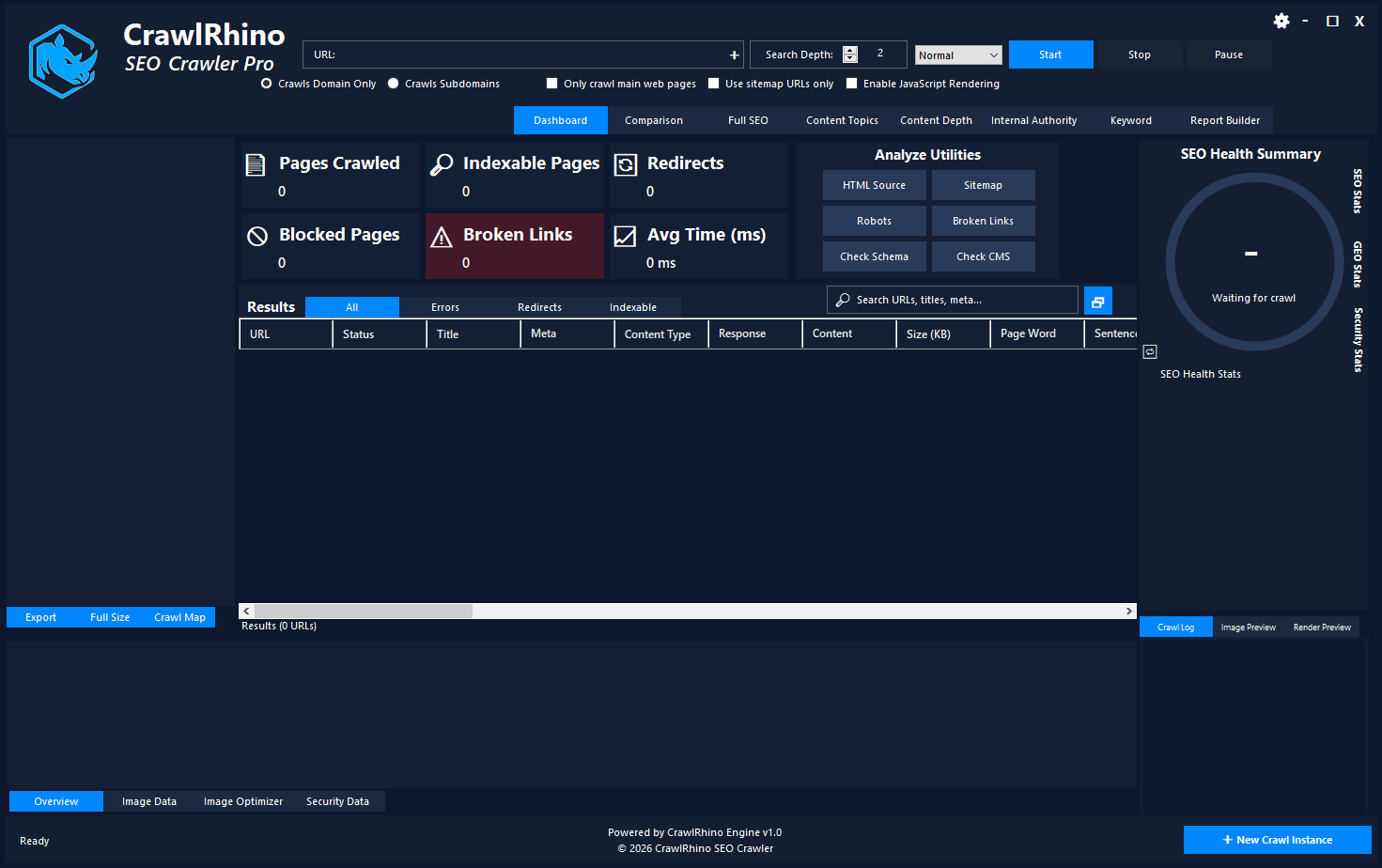
If you’re unfamiliar with the interface, see the Dashboard Overview guide.
Step 2: Enter the Website URL
To start crawling a website, enter the full website URL into the URL input field at the top of the dashboard.
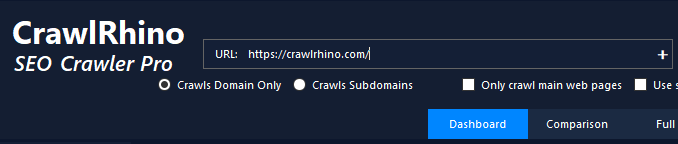
Example:
https://example.com
This tells the crawler which website to scan.
CrawlRhino will begin discovering URLs by following internal links across the site.
Step 3: Configure Crawl Settings

Before starting the crawl, you can adjust several crawl settings depending on your needs.
Crawl Depth
Crawl depth determines how many levels of links the crawler should follow.
For example:
- Depth 1 → Homepage only
- Depth 2 → Homepage and internal pages
- Depth 3+ → deeper website pages
For most SEO audits, a crawl depth of 3–5 levels is recommended.
Crawl Domain Only
This option ensures the crawler only scans pages on the selected domain.
Example:
example.com
External websites will not be crawled.
Crawl Subdomains
If enabled, CrawlRhino will also crawl subdomains such as:
blog.example.com
shop.example.com
docs.example.com
This is useful when auditing large websites with multiple sections.
Only Crawl Main Web Pages
The Only Crawl Main Web Pages option tells CrawlRhino to focus on crawling HTML pages and ignore non-page resources.
When enabled, the crawler will skip files such as:
- images
- JavaScript files
- CSS files
- fonts
- other static assets
This allows CrawlRhino to concentrate on the actual web pages that affect SEO, such as blog posts, product pages, landing pages, and category pages.
Using this option can make crawls faster and more focused, especially when analyzing large websites that contain thousands of assets.
For most technical SEO audits, enabling Only Crawl Main Web Pages helps you quickly identify issues related to:
- page titles
- meta descriptions
- headings
- internal linking
- indexable pages
If you need to analyze additional resources like images or scripts, you can disable this option and run a full crawl.
Use Sitemap URLs
Instead of discovering URLs through internal links, you can choose to crawl only the URLs listed in the XML sitemap.
This option is useful when auditing the pages that a website wants search engines to index.
Step 4: Enable JavaScript Rendering (Optional)

When JavaScript Rendering is enabled, CrawlRhino uses a Chromium browser engine to render web pages the same way a modern browser would.
Some websites load content dynamically using JavaScript frameworks such as:
- React
- Angular
- Vue
To properly analyze these pages, CrawlRhino must render the page after scripts execute.
If Chromium is not already installed, CrawlRhino will display a message asking if you want to install the required rendering engine.
Simply click Yes to download and install Chromium automatically.
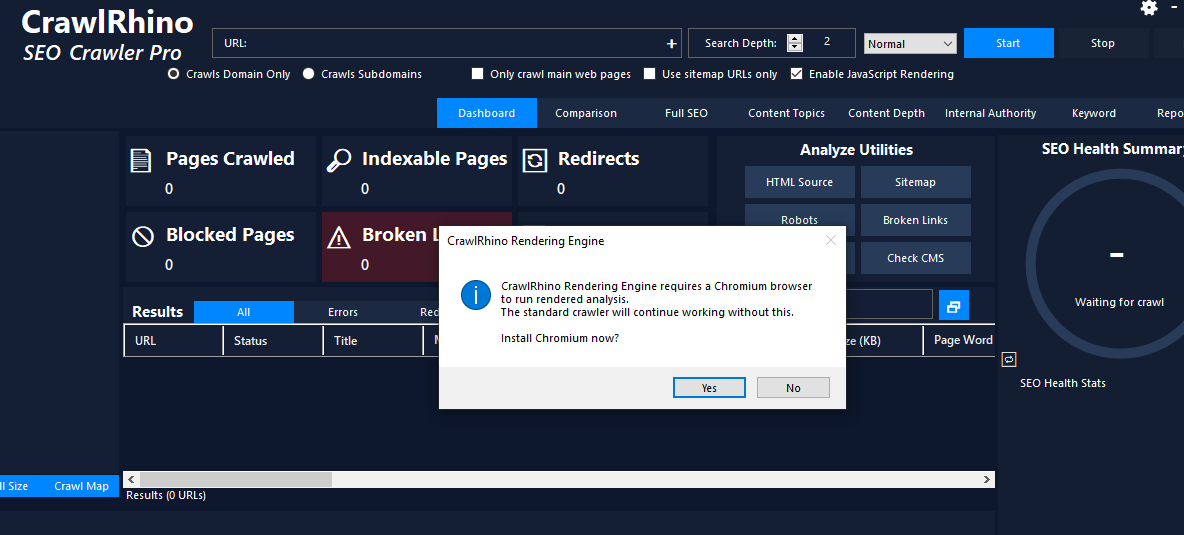
Once installed, CrawlRhino will be able to perform JavaScript-rendered crawls and analyze content that loads dynamically after the page loads.
If you choose No, the crawler will continue using the standard HTML crawler, but some JavaScript-generated content may not be detected.
JavaScript rendering may slow down crawling because each page must be loaded and rendered in a browser environment. Only enable this option when crawling websites that rely heavily on JavaScript.
Step 5: Start the Crawl
Once your settings are configured, click Start Crawl.
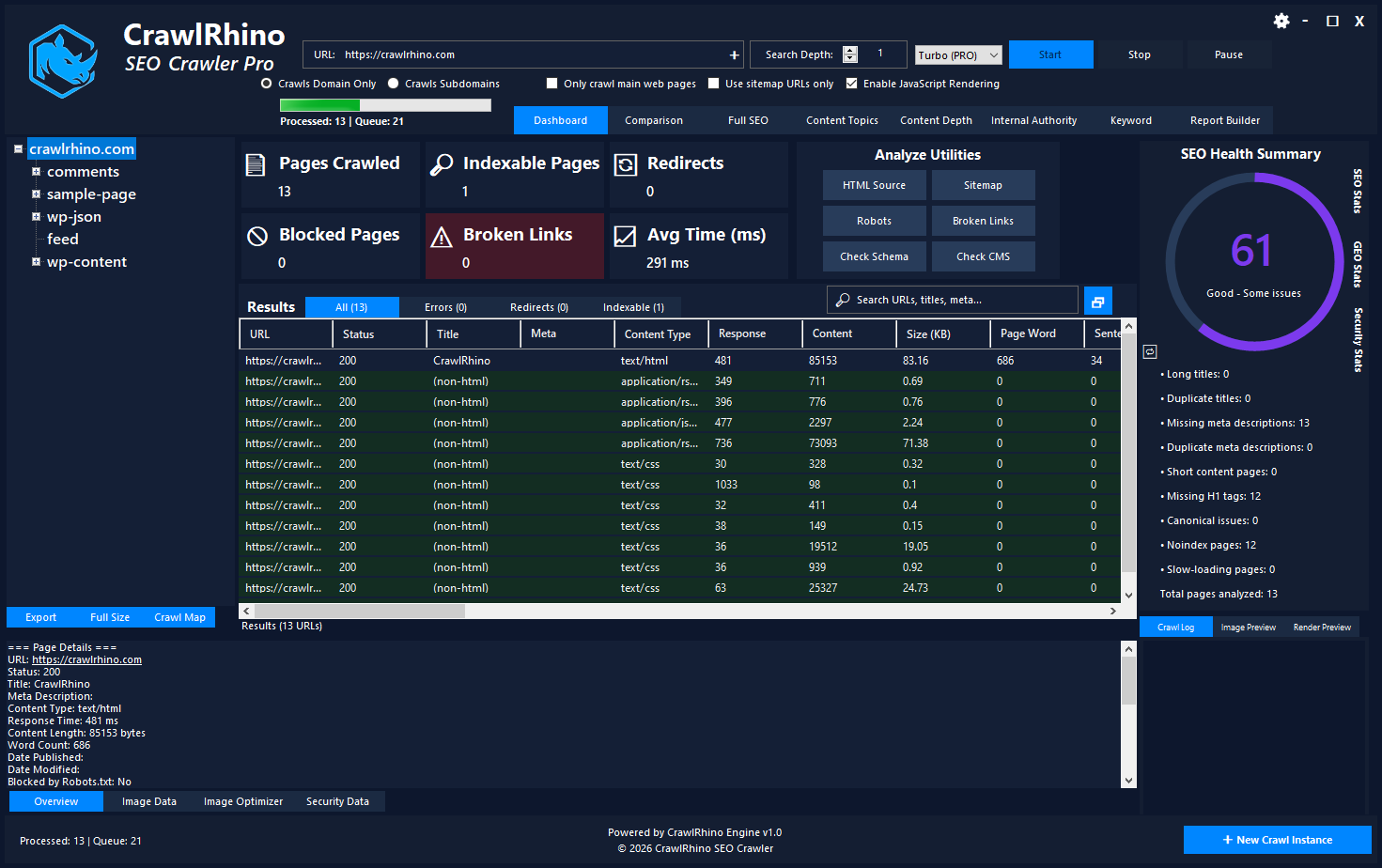
CrawlRhino will begin scanning the website and discovering URLs in real time.
During the crawl, you will see statistics such as:
- pages crawled
- indexable pages
- redirects
- blocked pages
- broken links
- average response time
These statistics update continuously as the crawl progresses.
Step 6: Monitor Crawl Progress
As the crawl runs, CrawlRhino displays live crawl data so you can monitor the health of the website.
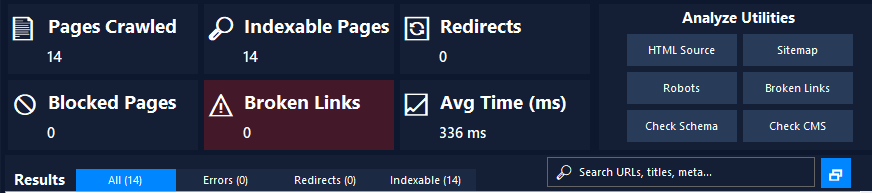
The dashboard will show:
Pages Crawled
The number of URLs discovered and analyzed.
Indexable Pages
Pages that are eligible to appear in search engine results.
Redirects
URLs that redirect to another page.
Blocked Pages
Pages blocked by robots.txt or meta noindex.
Broken Links
Links returning errors such as 404 or 500 status codes.
Monitoring these metrics during the crawl helps identify technical issues quickly.
Step 7: Analyze Crawl Results
After the crawl finishes, the results table will contain detailed information about every discovered page.
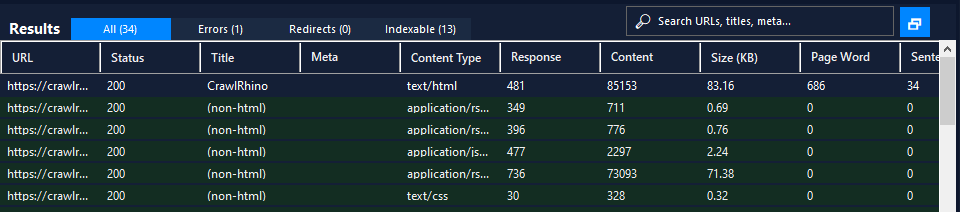
The crawl results include data such as:
- URL
- status code
- page title
- meta description
- response time
- page size
- word count
This data helps identify SEO problems affecting your website.
You can filter crawl results to quickly find:
- broken pages
- redirects
- duplicate titles
- missing metadata
Common Issues Found During Website Crawls
Website crawls often reveal technical SEO issues that can impact search engine rankings.
Some common problems include:
Broken Links
Links that return errors like:
404 Not Found
500 Server Error
Broken links can harm user experience and waste crawl budget.
Missing Meta Descriptions
Meta descriptions help search engines understand page content and influence click-through rates in search results.
Duplicate Titles
Multiple pages using the same title tag can confuse search engines and dilute SEO relevance.
Missing H1 Tags
H1 tags help search engines understand the main topic of a page.
Pages without an H1 may have weaker content structure.
Slow Page Speed
Slow response times can negatively impact both user experience and SEO performance.
Why Website Crawling Is Important for SEO
A website crawler allows you to analyze your site the same way search engines do.
Regular crawling helps you:
- detect technical SEO problems
- improve website structure
- optimize page metadata
- fix broken links
- improve page performance
Using SEO spider software like CrawlRhino, you can perform detailed website audits and identify issues that may be limiting your search engine rankings.
Download CrawlRhino SEO Crawler
If you want to perform detailed website audits and technical SEO analysis, CrawlRhino provides a fast and powerful alternative to traditional SEO spider software.
You can download CrawlRhino and start crawling websites immediately.